GitHub Issues Management
- This guide covers GitHub Issues setup, templates, labels, and best practices for tracking bugs and feature requests.
- You’ll learn to create structured issue workflows for effective project management.
1. Issues Overview
Issues Benefits
GitHub Issues provide a powerful way to track work on your repository:
- Bug Tracking: Report and track software bugs with detailed information
- Feature Requests: Collect and prioritize new feature ideas from users
- Task Management: Break down work into manageable, trackable units
- Project Planning: Link issues to milestones and project boards
- Team Communication: Discuss solutions and collaborate on fixes
- Documentation: Maintain a searchable history of problems and solutions
- Integration: Connect with pull requests, commits, and automation
- Community Engagement: Allow external contributors to report issues
2. Enable Issues
Private Repositories
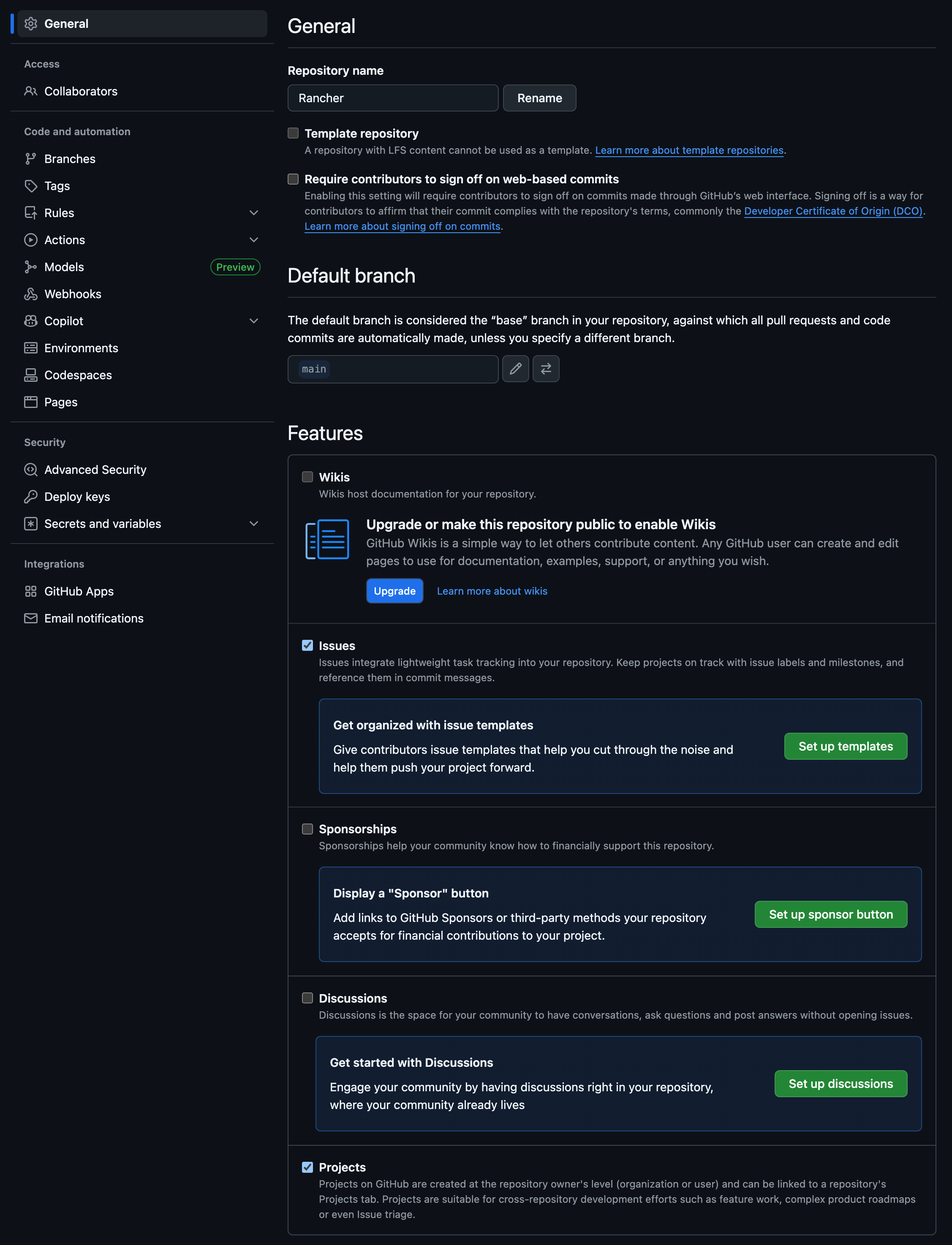
Issues are automatically enabled for public repositories but must be manually enabled for private repositories.
- Navigate to your repository on GitHub
- Click “Settings” tab
- Click “General” tab
- Scroll down to “Features” section
- Ensure “Issues” checkbox is checked
3. Create Issue Templates
Issue templates standardize how bugs and features are reported, ensuring you get all necessary information.
3.1. Set Up Templates
- In your repository, navigate to “Settings” → “Features”
- Click “Set up templates” next to Issues
- Choose from predefined templates or create custom ones
3.2. Bug Report Template
Create .github/ISSUE_TEMPLATE/bug_report.md:
---
name: Bug report
about: Create a report to help us improve
title: '[BUG] '
labels: 'bug'
assignees: ''
---

**Describe the bug**
A clear and concise description of what the bug is.

**To Reproduce**
Steps to reproduce the behavior:
1. Go to '...'
2. Click on '....'
3. Scroll down to '....'
4. See error

**Expected behavior**
A clear and concise description of what you expected to happen.

**Screenshots**
If applicable, add screenshots to help explain your problem.

**Environment (please complete the following information):**
 - OS: [e.g. iOS]
 - Browser [e.g. chrome, safari]
 - Version [e.g. 22]

**Additional context**
Add any other context about the problem here.
3.3. Feature Request Template
Create .github/ISSUE_TEMPLATE/feature_request.md:
---
name: Feature request
about: Suggest an idea for this project
title: '[FEATURE] '
labels: 'enhancement'
assignees: ''
---

**Is your feature request related to a problem? Please describe.**
A clear and concise description of what the problem is. Ex. I'm always frustrated when [...]

**Describe the solution you'd like**
A clear and concise description of what you want to happen.

**Describe alternatives you've considered**
A clear and concise description of any alternative solutions or features you've considered.

**Additional context**
Add any other context or screenshots about the feature request here.
3.4. Custom Template
Create .github/ISSUE_TEMPLATE/custom.md:
---
name: Custom issue
about: Describe this issue template's purpose here.
title: ''
labels: ''
assignees: ''
---

**Summary**
Brief description of the issue

**Details**
Detailed explanation of the request

**Acceptance Criteria**
- [ ] Criteria 1
- [ ] Criteria 2
- [ ] Criteria 3
4. Labels and Organization
4.1. Default Labels
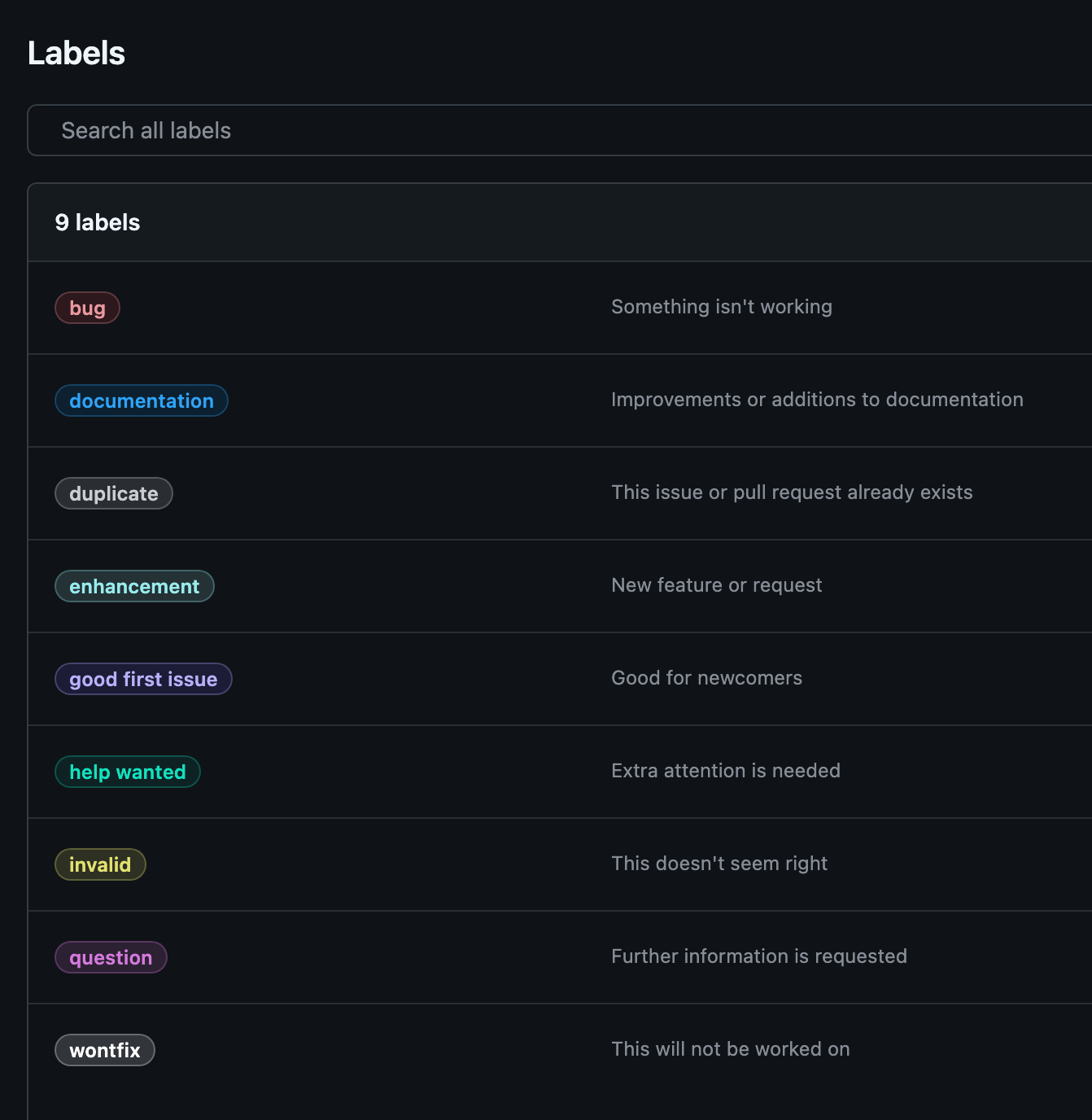
GitHub provides default labels, but you should customize them for your project:
- Go to “Issues” tab in your repository
- Click “Labels” button
- Review and edit existing labels
4.2. Recommended Label System
Create a comprehensive labeling system:
Type Labels
bug(red) - Something isn’t workingenhancement(blue) - New feature or requestdocumentation(purple) - Improvements or additions to documentationquestion(pink) - Further information is requested
Priority Labels
priority: critical(dark red) - Critical prioritypriority: high(red) - High priority itemspriority: medium(orange) - Medium priority itemspriority: low(yellow) - Low priority items
Status Labels
status: accepted(green) - Issue accepted for developmentstatus: blocked(red) - Progress is blockedstatus: in progress(yellow) - Currently being worked onstatus: needs review(blue) - Needs review or feedback
Effort Labels
effort: small(light green) - Small effort requiredeffort: medium(yellow) - Medium effort requiredeffort: large(orange) - Large effort requiredeffort: extra large(red) - Extra large effort required
Community Labels
good first issue(green) - Good for newcomershelp wanted(orange) - Extra attention is neededduplicate(gray) - Duplicate of another issuewontfix(white) - Won’t be fixed
4.3. Label Best Practices
- Use consistent colors for label categories
- Keep names short but descriptive
- Document your system in contributing guidelines
- Review and clean up unused labels regularly
5. Milestones
5.1. Create Milestones
- In “Issues” tab, click “Milestones”
- Click “New milestone”
- Fill in milestone details:
- Title: Descriptive name (e.g., “v1.0 Release”)
- Description: What this milestone represents
- Due date: Target completion date
5.2. Milestone Examples
- Version Releases: “v1.0”, “v1.1”, “v2.0”
- Sprint Goals: “Sprint 1”, “Sprint 2”
- Feature Themes: “User Authentication”, “API Improvements”
- Time-based: “Q1 2025”, “January 2025”
5.3. Using Milestones
- Assign issues to appropriate milestones
- Track progress with the milestone view
- Close milestones when all issues are completed
- Review scope regularly and adjust as needed
6. Issue Workflow
6.1. Creating Quality Issues
For Bug Reports:
- Clear title that summarizes the problem
- Detailed description of what happened
- Steps to reproduce the issue
- Expected vs actual behavior
- Environment information (OS, browser, version)
- Screenshots or logs if applicable
For Feature Requests:
- Descriptive title of the desired feature
- Problem statement explaining the need
- Proposed solution with details
- Alternative approaches considered
- Use cases and examples
6.2. Issue Management Process
-
Triage new issues:
- Add appropriate labels
- Assign to team members
- Set milestone if applicable
- Ask for clarification if needed
-
Prioritize work:
- Use priority labels
- Consider effort estimates
- Balance new features vs bug fixes
-
Track progress:
- Update status labels
- Add comments with updates
- Link related issues and PRs
-
Close resolved issues:
- Verify the fix works
- Thank contributors
- Document any follow-up needed
7. Advanced Issue Features
7.1. Issue References
Cross-reference issues:
#123- Link to issue #123owner/repo#123- Link to issue in another repositoryGH-123- Alternative reference format
Auto-close with commits:
fixes #123- Closes issue when mergedcloses #123- Same as fixesresolves #123- Same as fixes
7.2. Issue Assignments
- Assign to individuals responsible for the work
- Use team assignments for broader ownership
- Self-assign when picking up work
- Reassign when handoffs occur
7.3. Issue Linking
- Related issues: Reference with
#123 - Duplicate issues: Use “duplicate” label and reference original
- Parent/child relationships: Break large issues into smaller tasks
- Epic tracking: Use milestones or projects for large initiatives
8. Automation and Integration
8.1. GitHub Actions for Issues
Create automated workflows for issue management:
name: Issue Management
on:
  issues:
    types: [opened, labeled]

jobs:
  auto-assign:
    if: github.event.action == 'opened'
    runs-on: ubuntu-latest
    steps:
      - uses: actions/github-script@v6
        with:
          script: |
            github.rest.issues.addAssignees({
              owner: context.repo.owner,
              repo: context.repo.repo,
              issue_number: context.issue.number,
              assignees: ['maintainer-username']
            });
8.2. Issue Forms (Beta)
Use issue forms for structured input:
name: Bug Report
description: File a bug report
title: "[Bug]: "
labels: ["bug", "triage"]
body:
  - type: markdown
    attributes:
      value: |
        Thanks for taking the time to fill out this bug report!
  - type: input
    id: contact
    attributes:
      label: Contact Details
      description: How can we get in touch with you if we need more info?
      placeholder: ex. email@example.com
    validations:
      required: false
9. Best Practices
Issue Management Best Practices
Organization
- Use consistent labeling across repositories
- Create clear issue templates
- Maintain up-to-date milestones
- Regular triage and cleanup
Communication
- Write clear, descriptive titles
- Provide enough context for others to understand
- Update issues with progress and blockers
- Thank contributors for their reports
Workflow
- Establish team conventions for labels and assignments
- Use automation to reduce manual work
- Link issues to pull requests
- Close issues promptly when resolved
Community
- Welcome first-time contributors
- Provide clear contribution guidelines
- Respond to issues in a timely manner
- Use “good first issue” labels for onboarding
Summary
You now understand how to:
✅ Enable and configure GitHub Issues for your repository
✅ Create effective issue templates for bugs and features
✅ Implement a comprehensive labeling system
✅ Use milestones for project planning and tracking
✅ Manage issue workflows and team processes
✅ Apply automation for efficient issue management
✅ Follow best practices for community engagement