Creating a Template Repository
- This lab shows how to create and use GitHub template repositories for new repositories.
- This lab will not cover all the possible configurations and customizations for template repositories.
1. Template Repositories. Why?
Template Benefits
- Template repositories are special GitHub repositories that serve as blueprints (bootstraps) for creating new repositories.
-
Some of the templates include:
- Consistent project structure across teams and organizations
- Pre-configured settings like CI/CD pipelines, linting rules, and development tools
- Boilerplate code and documentation templates
- Faster project initialization without manual setup
- Best practices and guidelines for project setup
- Customizable workflows to fit specific project needs
- Integration with third-party tools and services
- Automated setup scripts for quick environment configuration
- Sample data and fixtures to help kickstart development
- Documentation and tutorials for using the template effectively
- Issue and pull request templates for consistent contributions
- Custom scripts for common tasks (e.g., setup, testing)
- Environment configuration files (e.g.,
.env.example)
When someone creates a new repository from a template, they get a clean copy with all the template’s files but none of its Git history.
2. Prepare Your Template Repository
Lets create a new repository on GitHub to serve as our template.
- Go to GitHub.com and sign in to your account.
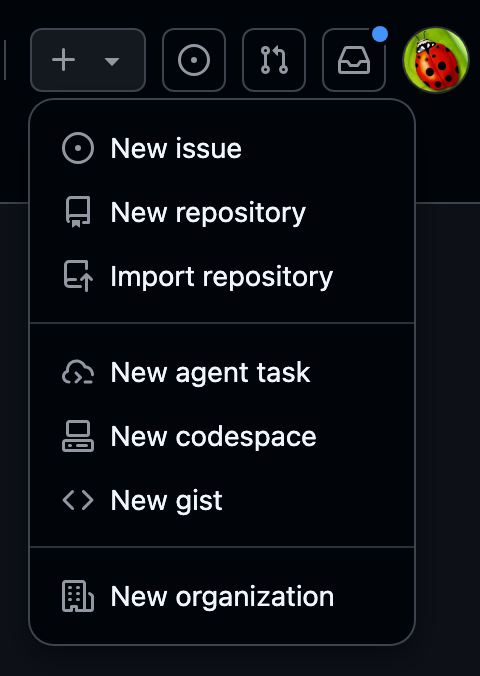
- Click the ”+” icon in the top-right corner and select “New repository”.
- Choose a descriptive name like
my-project-templateorreact-app-template. - Add a clear description explaining what the template is for.
- Make the repository Public (templates work best when accessible).
- Initialize with a README file.
- Click “Create repository”.
New Repository
Template Repository
3. Create Repository Template Files
-
A basic template project should look like:
root / # Repository root ├── .github / # GitHub-specific configuration │ ├── workflows / # GitHub Actions workflow definitions │ │ └── ci.yml # CI pipeline (build/test/lint) │ ├── ISSUE_TEMPLATE/ # Issue form/templates │ │ ├── bug_report.md # Bug report issue template │ │ └── feature_request.md # Feature request issue template │ └── pull_request_template.md # PR description guidance ├── docs/ # Project documentation │ ├── CONTRIBUTING.md # How to contribute (standards, process) │ └── SETUP.md # Local environment / install steps ├── src/ # Application/source code │ └── (your project files) # Replace with actual modules/packages ├── tests/ # Test suite root │ └── (test files) # Unit/integration/e2e tests ├── .gitignore # Ignore rules for Git ├── LICENSE # Project license (e.g., MIT, Apache-2.0) ├── README.md # Overview, usage, badges, quick start └── package.json (or equivalent) # Dependency & script manifest (npm, etc.) -
Create any content you want to include in the template repository
- Add and commit your changes
4. Enable Template Mode
Note
In order to use this repository as a template, you need to enable template mode.
- Navigate to your repository on GitHub.
- Click the “Settings” tab (top navigation bar).
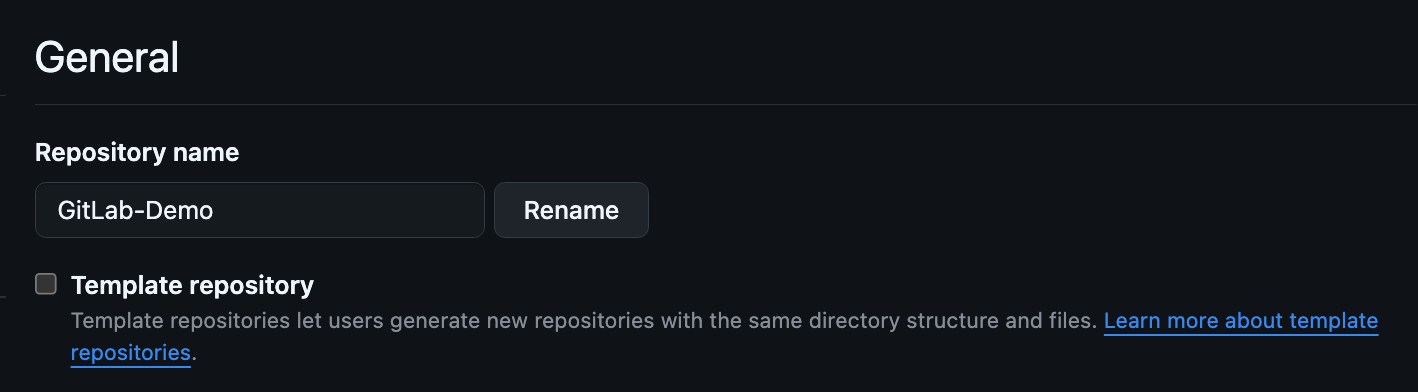
- Scroll down to the “General” section.
- Find the “Template repository” checkbox.
- Check the box to “Template repository”.
- Click “Save” to confirm the changes.
5. Use the Template Repository
- Log into GitHub.
- Navigate to your template repository.
- Click the green “Use this template” button (appears instead of “Clone”).
- Select “Create a new repository”.
- Fill in the new repository details:
- Repository name: Choose a descriptive name
- Description: Describe the specific project
- Visibility: Public or Private as needed
- Choose whether to “Include all branches” (usually keep unchecked).
- Click “Create repository from template”.
- Your new repository will be created with all files and settings from the template.