Creating and Using Pull Request Templates
- This lab shows how to create and use PR templates to standardize pull request descriptions and ensure consistent information across your team.
Task: Create and Use a PR Template
1. Understanding PR Templates
- PR templates automatically populate the description field when someone creates a new pull request.
- They help us with the following:
- Maintain consistent information across all PRs
- Ensure required details aren’t missed
- Facilitate faster code reviews with better context
- Provide clear linking between PRs and issues
2. Create the Template File
- Create a new branch (So you can work on the template without affecting the main branch).
- In your repository root, create a
.githubfolder if it doesn’t exist. - Inside
.github, create a file namedpull_request_template.md. - Add your template content using markdown syntax.
The file structure should look like:
3. Template Content
Here’s a comprehensive template that covers most use cases:
## Description
<!-- Briefly describe the changes introduced by this PR -->

## Related Issue
<!-- Link the issue this PR closes or relates to , if any-->
Fixes #<issue_number>

## Type of Change
<!-- Leave only the relevant one and delete the others -->
- [ ] Bug fix 🐛
- [ ] New feature ✨
- [ ] Documentation update 📚
- [ ] Enhancement 🛠️
- [ ] Refactoring ♻️
- [ ] Hotfix 🔥
- [ ] Other (please describe):

## Checklist
- [ ] I have tested my changes locally
- [ ] I have updated documentation if needed
- [ ] My code follows the project's style guidelines
- [ ] I have linked the related issue
- [ ] I need to go home 😊

## Screenshots (if applicable)
<!-- Add before/after screenshots for UI changes -->

## Additional Notes
<!-- Anything else reviewers should know -->
4. Create the Template File in Your Repo
Creating the Template File
Make sure you create the template file in the correct location.(.github folder) or else it will not work.
- Switch to the
mainbranch. - Switch to your repository root folder.
- Create new file with the specific name
.github/pull_request_template.md - Copy the template content from above into the file.
- Commit and push the changes
5. Using the Template
- Make changes, add, commit & push your code.
- Create a new pull request as usual.
- The template will automatically appear in the description field.
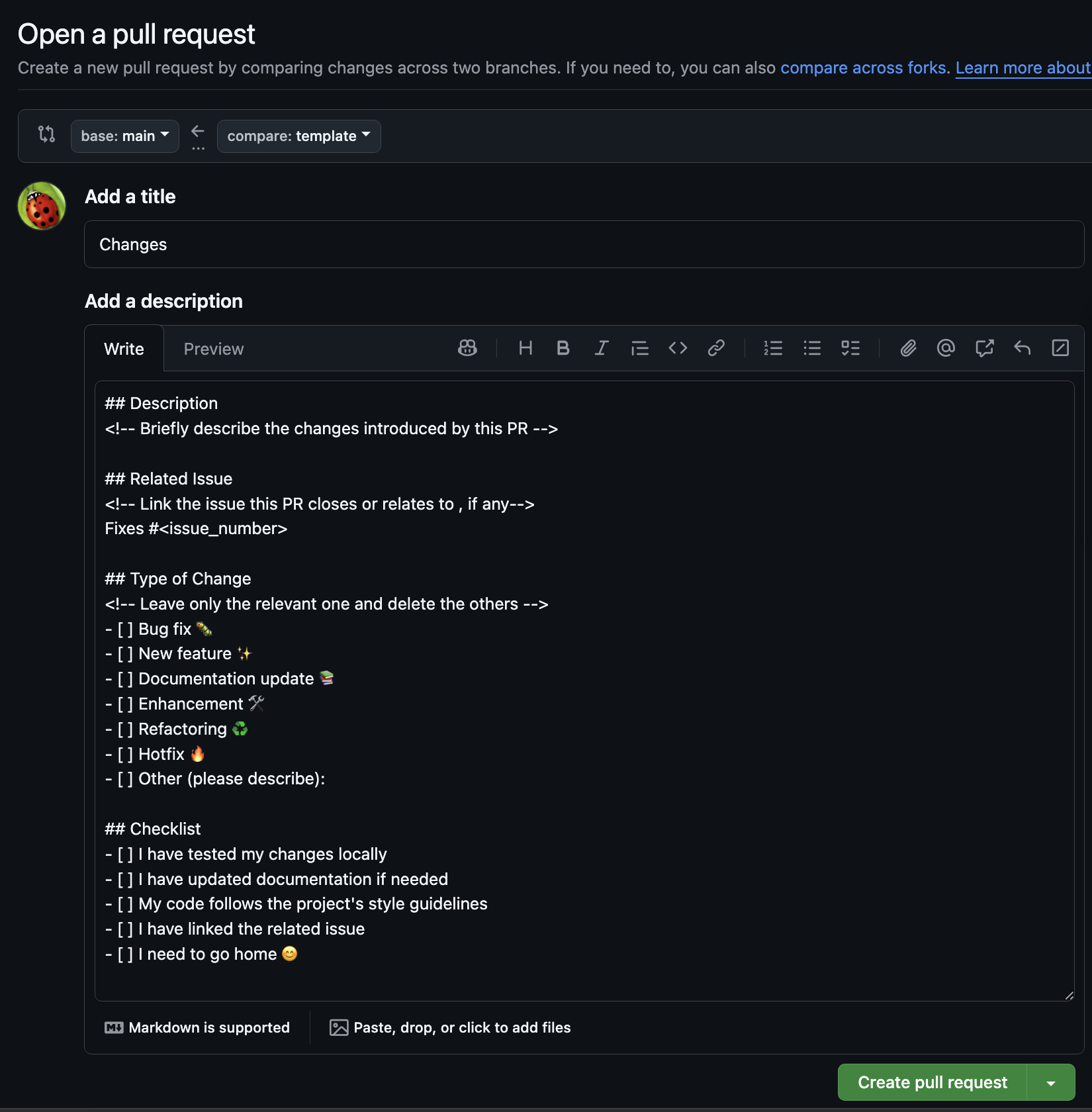
Task: Create and Use Custom PR Template
6. Multiple Templates
You can create different templates for different types of PRs:
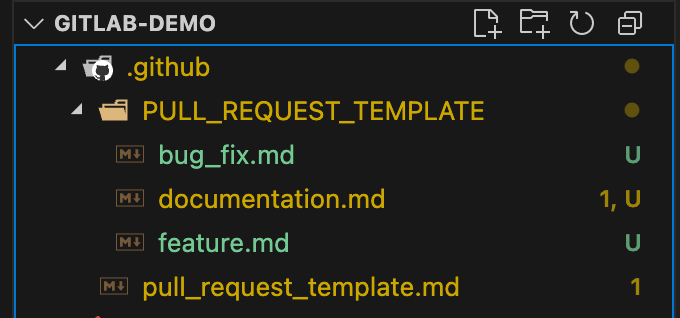
.github/
├── PULL_REQUEST_TEMPLATE/
│   ├── bug_fix.md
│   ├── feature.md
│   └── documentation.md
└── pull_request_template.md (default)
- Create a new file for each template in the
.github/PULL_REQUEST_TEMPLATE/directory. - Write your template content using markdown syntax.
- You can set a template name and description:
-
Add, commit, and push your changes.
ISSUE_TEMPLATE
- GitHub support Issue Template as well.
- Same concept but in different folder.
.github/ISSUE_TEMPLATE/
7. Using PR template
Default Template
In order to use the default PR template, simply create a new pull request as you normally would.
Custom Template
In order to use a custom PR template, you can specify the template in the URL when creating the PR.
###
### https://github.com/owner/repo/compare/<branch to>...<branch_from>?template=<template>

https://github.com/owner/repo/compare/main...feature?template=feature.md
8. Testing Your Template
- Create a test branch:
- Open a new PR from this branch to see the template in action.
- Verify all sections appear correctly and make adjustments if needed.