Performing a Full Code Review on GitHub Web
- This guide provides a detailed, step-by-step breakdown of how to perform a complete code review using the GitHub web interface.
- It covers adding reviewers and teams, making comments, and submitting a review. Screenshots are referenced for clarity.
Task: Perform a Code Review
1. Add Reviewers and Teams
Notes about Teams
Teams must be configured in your GitHub organization to appear in the list.
- Go to your repository on GitHub
- Click on the “Pull requests” tab
- Select the pull request you want to add reviewers to
- Look for the “Reviewers” section in the right sidebar
- Click the gear icon (⚙️) next to “Reviewers”
- Search for and select reviewers by:
- Username
- Full name
- Team name (if you have access to teams) (e.g.,
@organization/team-name)
- Click on the reviewer name to add them
2. Adding Comments
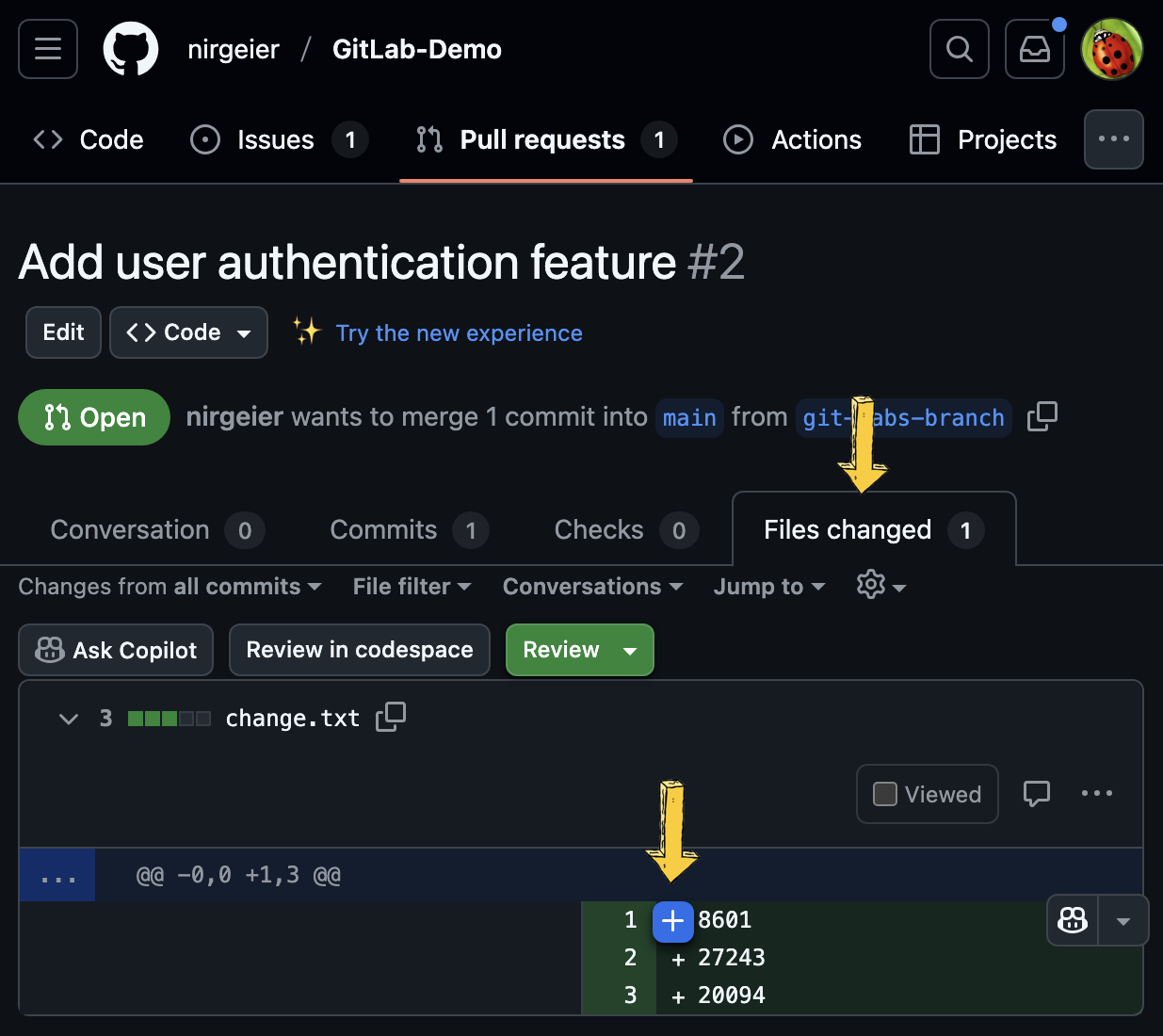
- In the Files Changed tab, scroll through the list of changed files to locate the specific lines of code you want to comment on.
- Hover your mouse over the line number where you want to add feedback.
- A blue + icon will appear to the left of the line.
- Click the + icon to open the inline comment editor for that line or code block.
Tip
- In the comment box, write your feedback, question, or suggestion.
You can use Markdown formatting, reference other issues or pull requests with#, and mention users or teams with@.
- You can also select multiple lines to comment on a code range.
3. Submit Comments
- Choose how to submit your comment:
- Click Add single comment to immediately post your feedback.
- Click Start a review if you want to leave multiple comments before submitting them all together as a review. This is useful for providing comprehensive feedback in one go.
- If you started a review, continue adding comments throughout the code as needed. All comments will be collected in your pending review.
4. Review Changes
-
When finished, click the Review changes button at the top right of the Files Changed tab.
Option Description Comment Submit your feedback without approving or requesting changes. Approve Indicate the code is ready to merge. Request changes Block merging until issues are addressed. (Summary comment) Optionally, add a summary comment for the overall review. -
Click Submit review to finalize and send your comments to the pull request author and other reviewers.
PR Notes
You can also add comments to entire files or outdated diffs by clicking the appropriate options in the Files Changed tab.
All comments and review activity will appear in the Conversation tab for full visibility.
Whenever you have an open PR on a specific branch, make sure to push your changes to the same branch as the pull request.
The pull request will automatically update with your new commits.