Opening Pull Requests via GitHub Web Interface
This guide explains how to create pull requests using the GitHub web interface. This is the most visual and user-friendly method for creating pull requests.
Prerequisites
- A repository with at least one branch containing changes
- Proper authentication setup with GitHub
- Your feature branch has been pushed to the remote repository
Task: Create pull request on GitHub
1. Navigate to Pull Request
- Go to your repository on GitHub.com
- Navigate to the “Pull requests” tab
2. Create Pull Request
- Click the “Compare & pull request” button (appears automatically after pushing a new branch)
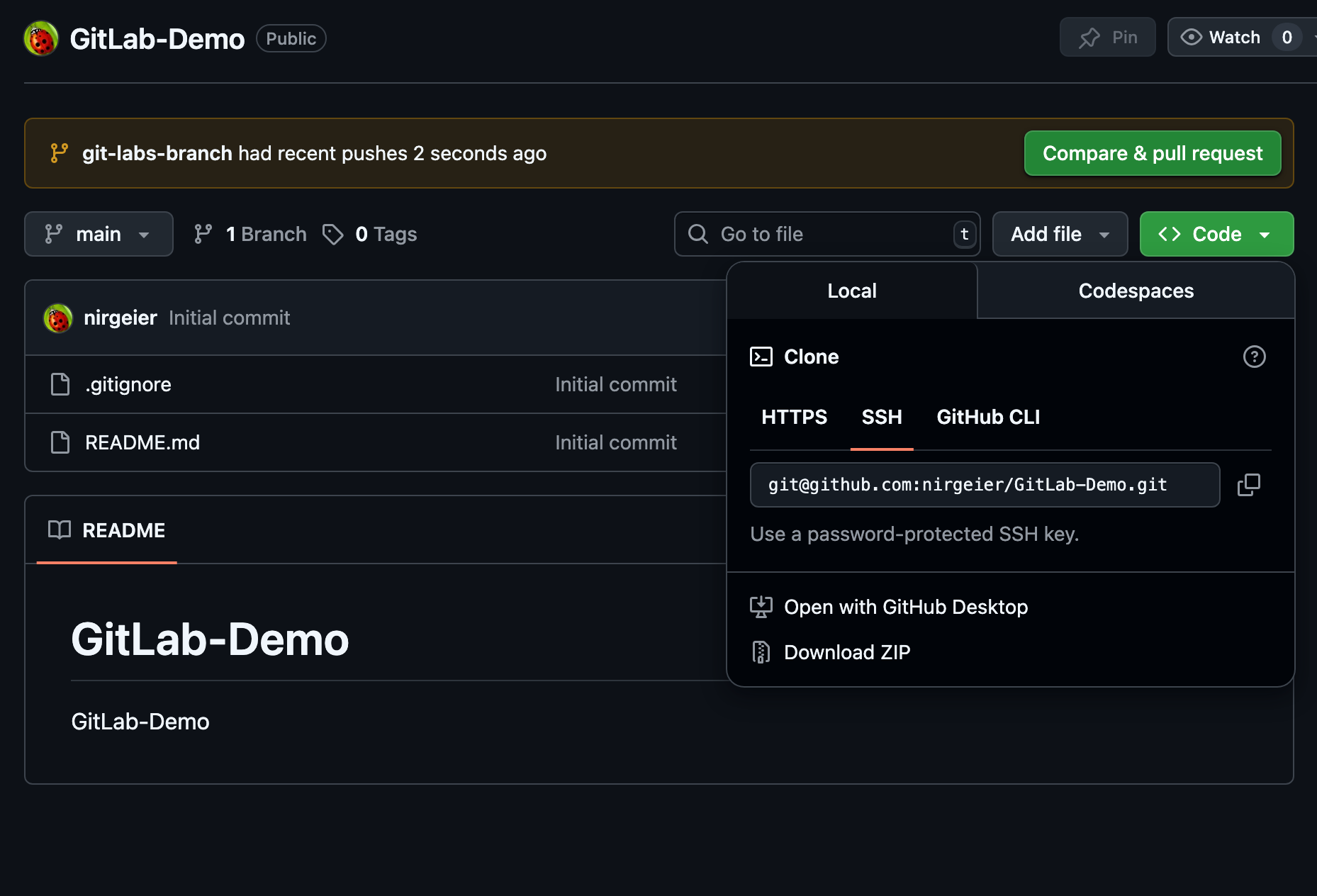 ]
]
OR
- Navigate manually:
- Click the “Pull requests” tab
- Click “New pull request”
- Select the base branch (usually
mainormaster) - Select your feature branch as the compare branch
- Click on
Create pull request
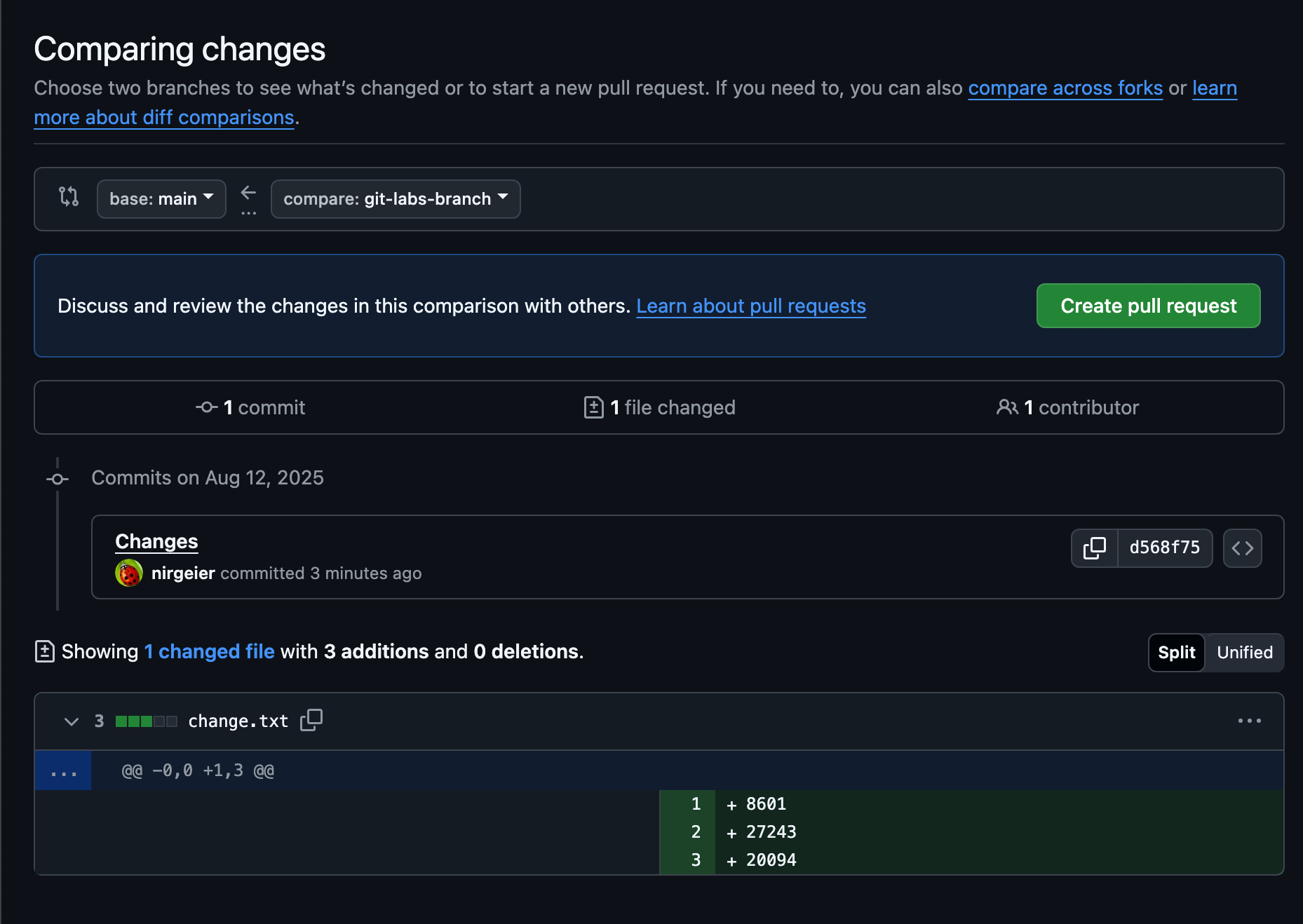 ]
]
3. Fill Pull Request Details
- Title: Provide a clear, descriptive title
-
Description: Include detailed information:
For example:
- Why the change is needed.
- What changes were made.
- How to test the changes.
- Additional context or screenshots.
-
Reviewers: Add reviewers by typing their GitHub usernames
-
Assignees: Assign yourself or team members.
-
Labels: Add appropriate labels (feature, bugfix, etc.).
-
Projects: Link to project boards if applicable.
-
Milestone: Associate with project milestones.
4: Choose PR Type
-
Choose PR type:
PR Type Description Create pull request For standard PRs ready for review. Create draft pull request For work-in-progress. -
Click the “Create pull request” button to submit your PR.