Cloning a GitHub Repository
- This guide explains how to clone a repository from GitHub to your local machine using the GitHub website and Git.
- Clone “downloading” the repository to your local machine.
- This allows you to work on the project locally and push changes back to the remote repository.
Task: Clone the repository locally
1: Find the Repository
- Go to https://github.com and log in.
- Navigate to the repository you want to clone.
2: Copy the Repository URL
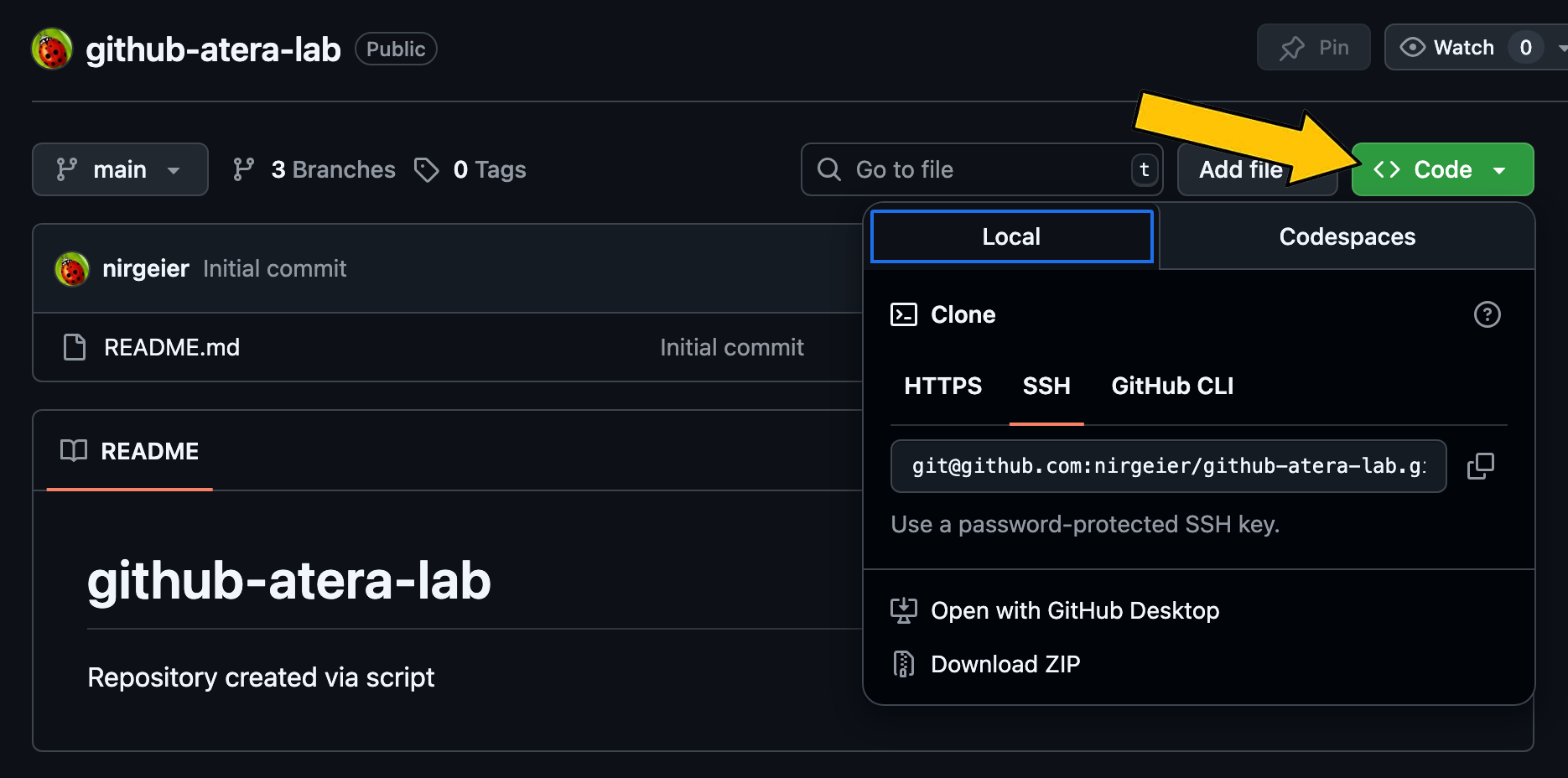
- Click the green Code button on the repository page.
- Choose the desired protocol:
- HTTPS (recommended for most users)
- SSH (requires SSH key setup from setup step 1)
- GitHub CLI
- Click the clipboard icon to copy the URL.
3a: Clone the Repository Locally (CLI)
- Open your terminal or command prompt.
- Run the following command, replacing
<URL>with the copied repository URL: - A new folder with the repository’s name will be created in your current directory.
3b: Clone the Repository (VSCode)
- Open Visual Studio Code.
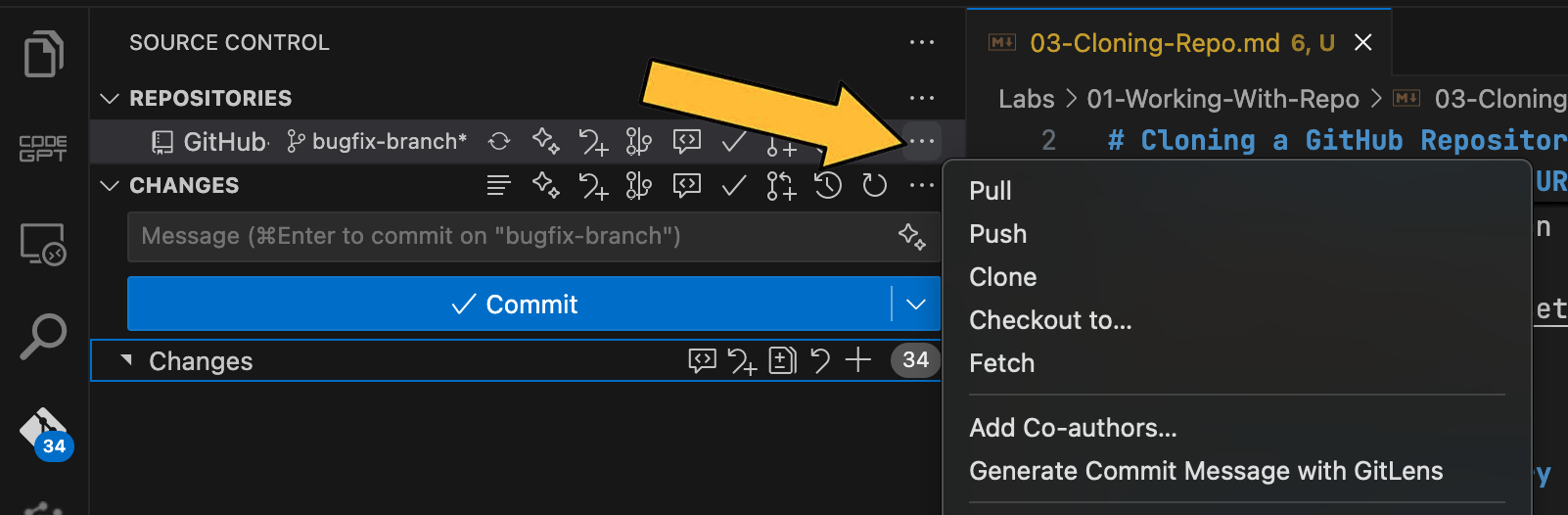
- Go to the Source Control view (
Ctrl+Shift+GorCmd+Shift+Gon Mac). - Click on the “Clone Repository” button.
- Paste the copied repository URL and choose a local directory.
- Click “Clone” to create a local copy of the repository.
4: Start Working
- Change into the repository directory:
- You can now start working with the code locally.