Creating Branches Using GitHub GUI
- This guide explains how to create branches in a GitHub repository using the GitHub web interface (GUI). Branching allows you to work on new features, bug fixes, or experiments in isolation from the main codebase.
Task: Create Branches and verify
1. Navigate to Your Repository
- Go to github.com and sign in.
- Click on your repository from the list or search for it.
2. Open the Branch Selector
- At the top left of your repository page, locate the branch selector dropdown (usually says
mainorgh-pages). - Click the dropdown to view existing branches.
3. Create a New Branch
- Create 2 branches:
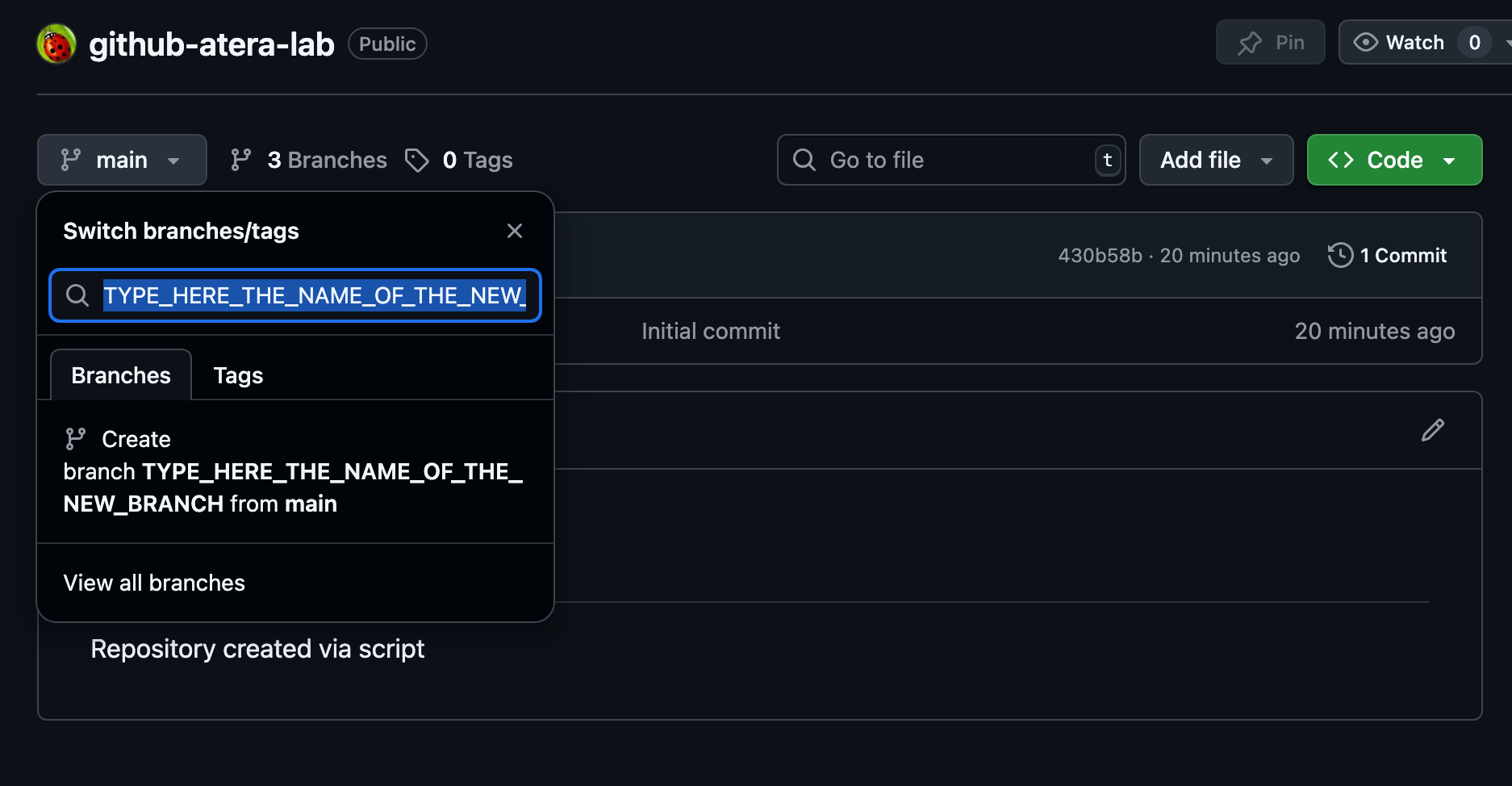
bugfix-branch,feature-branch. - In the branch selector, type the name of your new branch
- GitHub will show an option:
Create branch: <your-branch-name>from<current-branch>. - Click this option to create and switch to the new branch.
4. Verify the New Branches
- The branch selector should now display your new branch name.
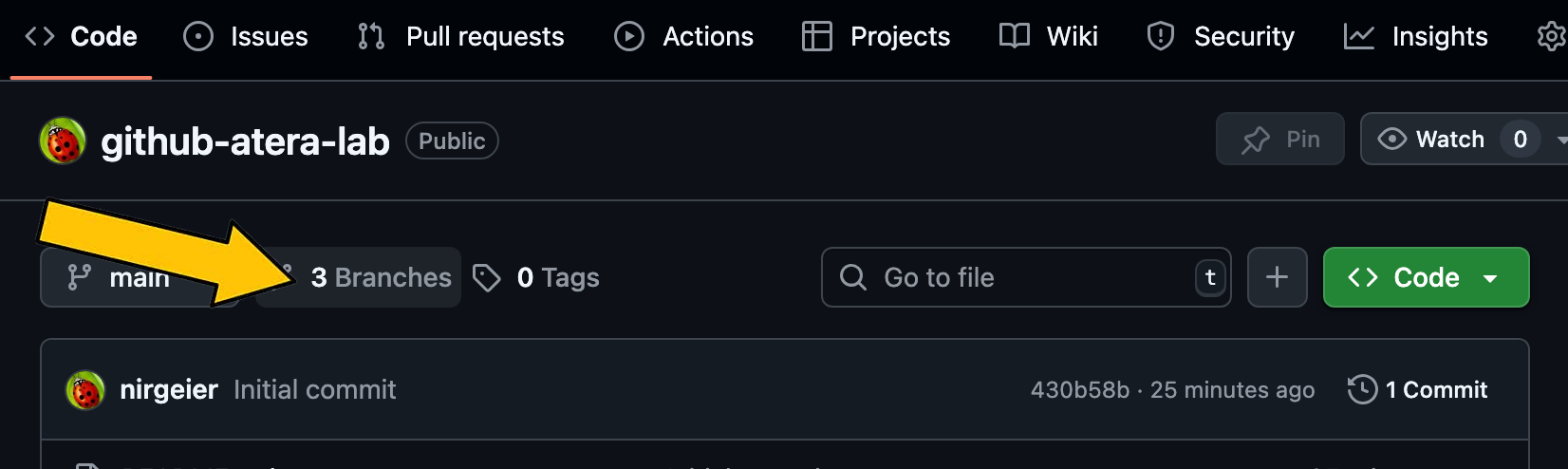
- Click on the
Branchestab under theCodesection to view all branches in the repository. - Verify that your new branches (
bugfix-branch,feature-branch) are listed.