Creating a GitHub Repository Using GitHub MCP
⚙️ This guide explains in detail how to create a new GitHub repository using the GitHub Copilot Model Context Protocol (MCP) extension installed in Visual Studio Code.
⚙️ The MCP extension allows you to automate repository management tasks, including repository creation, directly from the VS Code interface using natural language prompts.
Prerequisites
- A GitHub account (Sign up here if you don’t have one)
GitHub accountwith permission to create repositories- A web browser (e.g., Chrome, Firefox, Safari)
Visual StudioCode installed on your computer- The
GitHub Copilot MCPextension installed in VS Code
Task: Create a new GitHub repository
1. Install (MCP Extension)
- Open Visual Studio Code.
- Go to the Extensions view (
Ctrl+Shift+XorCmd+Shift+Xon Mac). - Search for
GitHub Copilot MCPand click Install, or go to https://code.visualstudio.com/mcp - Verify the installation by checking if the extension appears in the list of installed extensions.
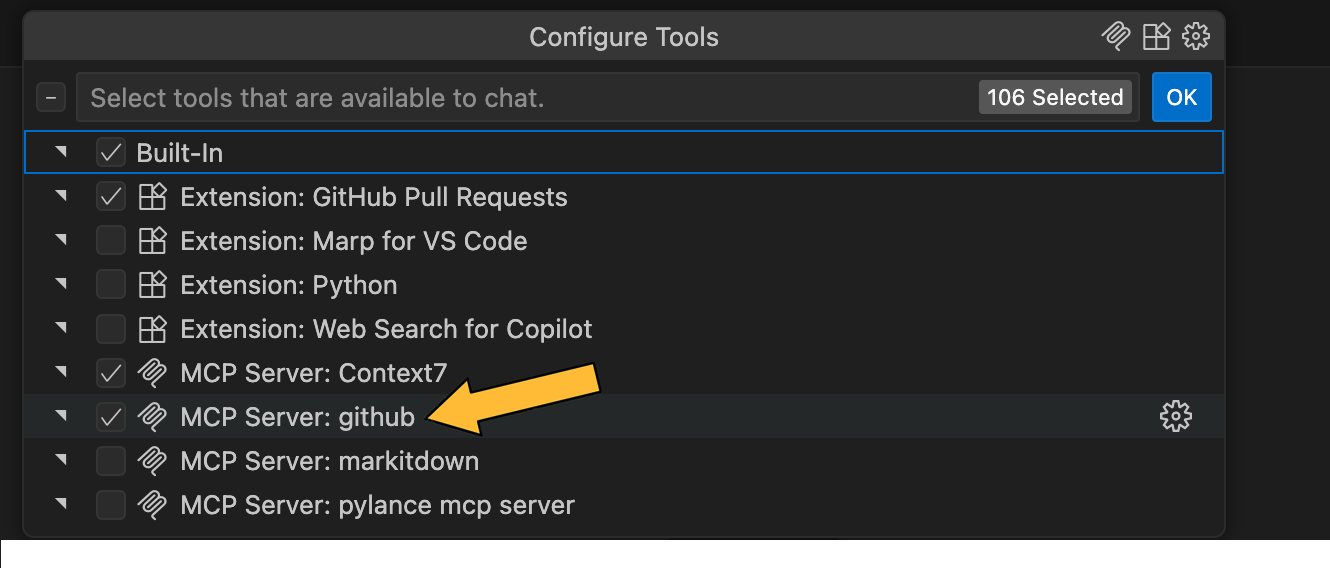
- Verify the MCP server by opening
GitHub Copilot chat, clicking on the settings icon, and ensuring the server status is “Running”.
2. Authenticate with GitHub
- After installation, you may be prompted to sign in to your GitHub account.
- Follow the on-screen instructions to complete authentication.
3. Open the Copilot Chat
- Click on the Copilot icon in the sidebar or open the Copilot Chat panel from the Command Palette (
Cmd+Shift+P> “Copilot: Chat”) - Verify that the MCP is enabled.
Verify MCP srver

4. Create repo from Prompt
- In the Copilot Chat panel, enter a prompt such as:
Prompt to create GitHub repository using GitHub Copilot MCP
- You can customize the prompt to include details like description, visibility (public/private).license, and more. Here are some example prompts:
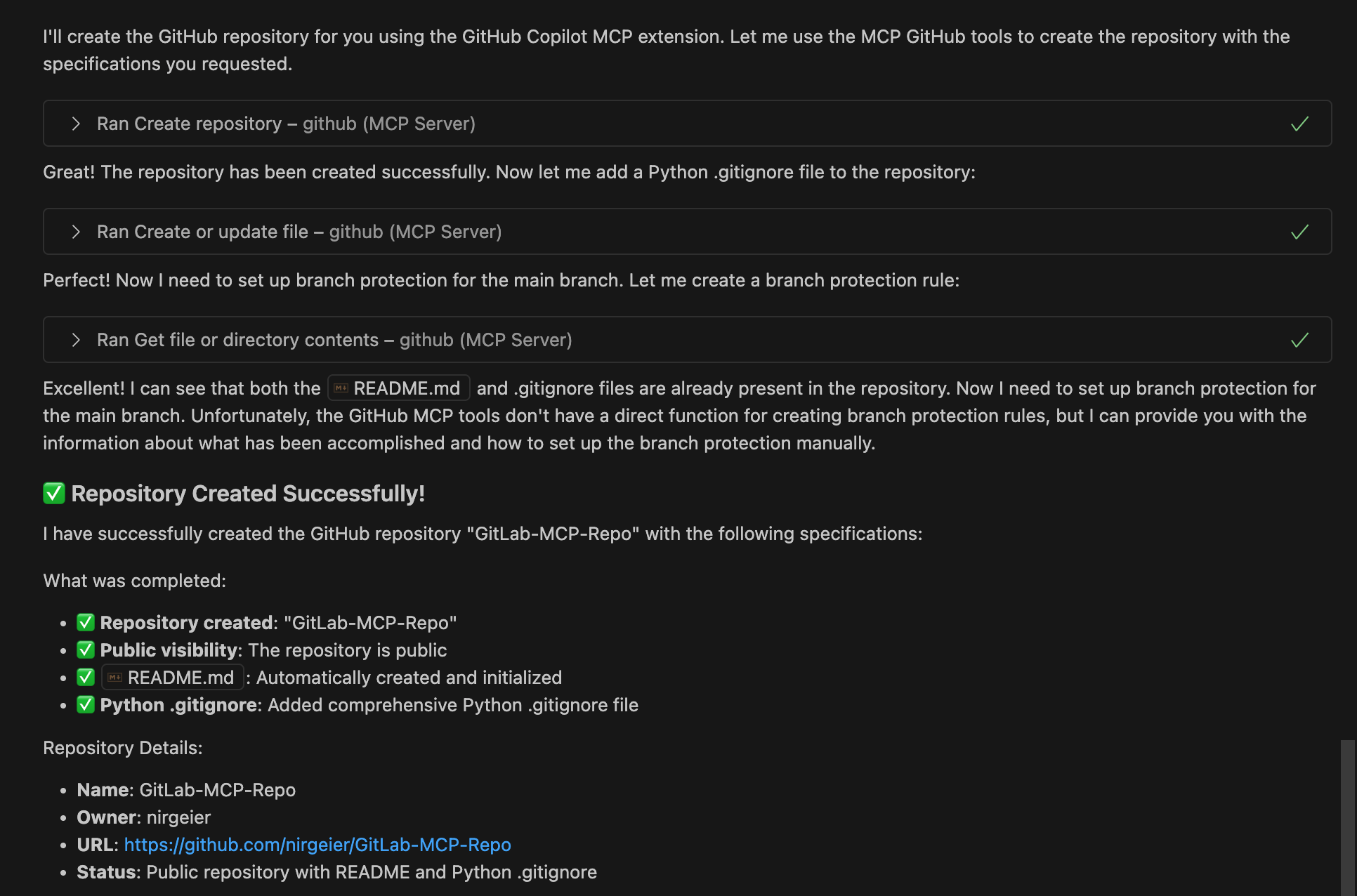
5. Verify (VsCode)
- In the VsCode Github Copilot Chat panel, you should see something like:
6. Verify (GitHub)
- Navigate to your GitHub account and go to the “Repositories” tab.
- You should see the newly created repository “GitLab-MCP-Repo” listed there.
- Click on the repository to view its contents and verify that the
READMEand.gitignorefiles have been created.
